
How to Update Your miniSMU Firmware
Keep your miniSMU MS01 up to date with the latest features and improvements using our web-based updater or the miniSMU app.
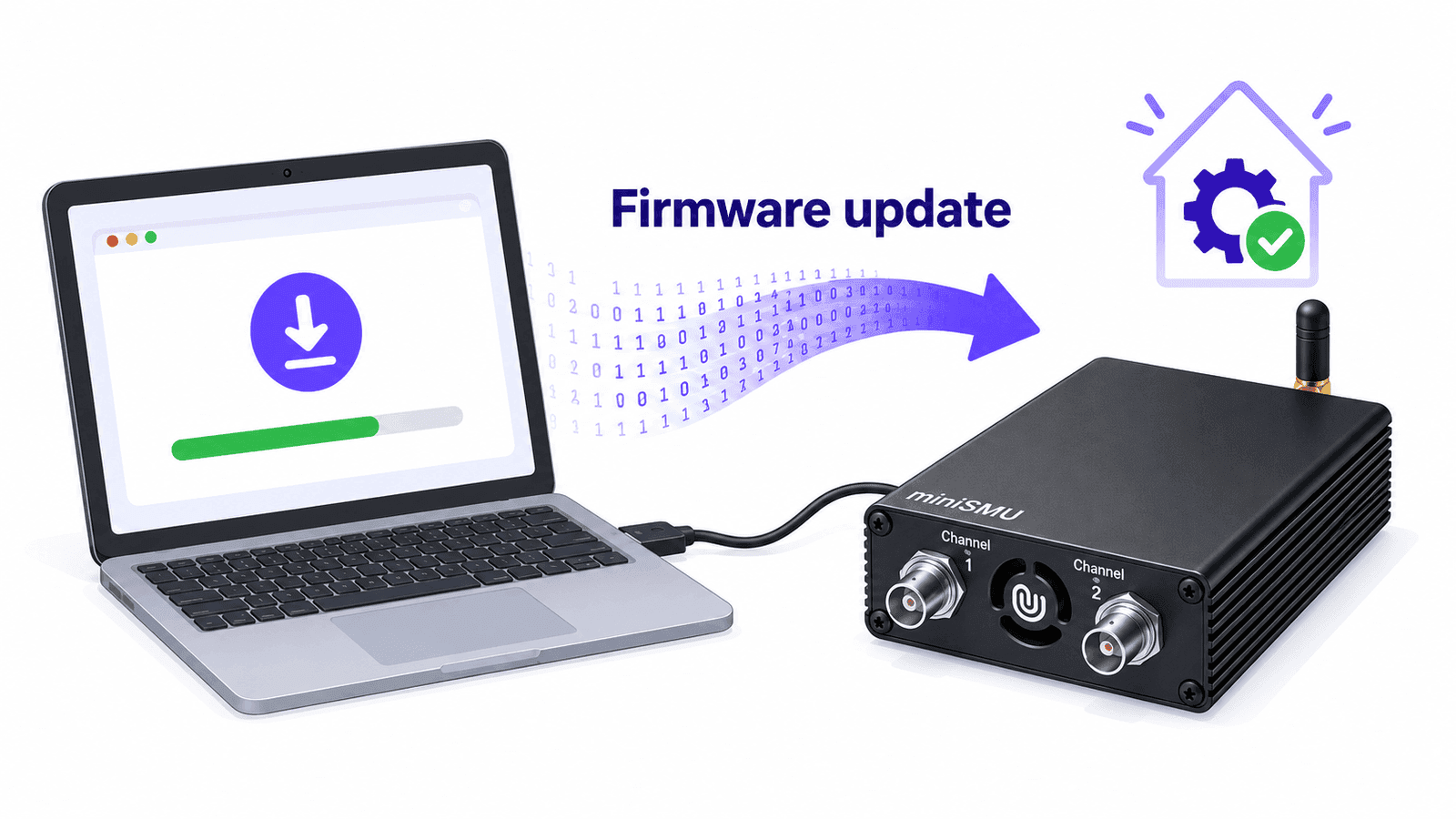
Firmware updates for the miniSMU MS01 unlock new features, improve performance, and fix bugs. Keeping your device up to date ensures you have access to the latest capabilities, from hardware-accelerated I-V sweeps to 4-wire Kelvin sensing mode.
TL;DR: You can update your miniSMU firmware using either the web-based firmware updater (requires Chrome, Edge, or Opera) or the miniSMU desktop app. Both methods take just a few clicks and the device will automatically reboot with the new firmware.
Why Update Your Firmware?
Firmware updates bring meaningful improvements to your miniSMU. Here are some features that have been added through firmware updates:
On-board I-V Sweeps (v1.3.4+)
Execute voltage sweeps directly on the miniSMU hardware, eliminating communication overhead between your computer and the device. This results in:
- More consistent timing between measurement points
- Reduced I/O latency for faster overall sweep times
- Up to 1000 data points per sweep with configurable dwell times
Learn more in the On-board I-V Sweep documentation.
4-Wire Kelvin Sensing Mode
Eliminate lead resistance errors from your measurements by using the miniSMU's dual-channel architecture for true 4-wire sensing:
- Channel 1 acts as the force channel (sources voltage, measures current)
- Channel 2 acts as the sense channel (high-impedance voltage measurement)
- Get accurate device voltage readings regardless of cable length or resistance
For a deep dive into why this matters for solar cell testing, see our guide on Kelvin connections for solar cell I-V testing.
Bug Fixes and Stability Improvements
Each firmware release includes fixes for reported issues and general stability improvements. The changelog is displayed during the update process so you can see exactly what's changed.
Before You Update
Before starting a firmware update:
- Save any ongoing work - The update process will briefly disconnect your miniSMU
- Connect via USB - Firmware updates require a USB connection (WiFi updates are not supported)
- Use a compatible browser (for web updater) - Chrome, Edge, or Opera with Web Serial API support
Method 1: Web-Based Firmware Updater
The easiest way to update your miniSMU is using our browser-based tool at undalogic.com/minismu/firmware-update.
Step-by-Step Instructions
Connect your miniSMU to your computer via USB
Open the firmware update page at undalogic.com/minismu/firmware-update in Chrome, Edge, or Opera
Click "Connect Device" and select your miniSMU from the serial port picker
Review your device information - The tool displays your current firmware version, serial number, and device model
Check for updates - If a newer firmware version is available, you'll see the version number and release notes
Click "Start Firmware Update" - The tool will:
- Download the latest firmware
- Upload it to your miniSMU
- Automatically reboot the device
Reconnect to verify - After the device reboots, reconnect to confirm the new firmware version
Do not disconnect your miniSMU during the firmware upload process. Wait for the "Update completed successfully" message before unplugging.
Method 2: miniSMU Desktop App
The miniSMU desktop application also includes built-in firmware update functionality.
Step-by-Step Instructions
Download and install the miniSMU app if you haven't already
Connect your miniSMU via USB and open the app
Connect to the serial port using the port selector in the app
Click the icon and select "Firmware Update in the app Start tab
Click "Download Latest Firmware" - The app will automatically check for the newest available update.
Review the update details and click "Upload Firmware" if a new version is available
Wait for the update to complete - The app will show progress as the firmware is downloaded and flashed
Reconnect after reboot - The miniSMU will automatically reboot; reconnect to verify the update
Troubleshooting
"Web Serial API is not supported"
This error appears when using a browser that doesn't support Web Serial. Switch to Chrome, Edge, or Opera (version 89 or later).
"Update Blocked" for firmware v1.0.3 or below
Devices running firmware version 1.0.3 or earlier require a manual update process for safety reasons. Contact support@undalogic.com for assistance.
Device not appearing in port list
- Ensure your miniSMU is powered on and connected via USB
- Try a different USB cable or port
- On Windows, check that the correct drivers are installed (the device should appear as a COM port in Device Manager)
- Close any other applications that might be using the serial port (including other instances of the miniSMU app)
Update appears to hang
The upload process can take up to a minute depending on the firmware size. If progress stalls for more than 2 minutes:
- Do not unplug the device immediately
- Wait an additional minute to see if it resumes
- If still unresponsive, disconnect and reconnect the USB cable
- Retry the update process
Device won't boot after update
In rare cases, if an update is interrupted, the device may not boot correctly. You can restore the previous working firmware using the built-in recovery mode:
- Disconnect the miniSMU from USB power
- Locate the "User" button on the back of the miniSMU
- Press and hold the User button before connecting power
- Connect the USB cable while continuing to hold the button
- Keep holding for 10 seconds, then release
The miniSMU will boot using the last known good firmware version. Once recovered, you can attempt the firmware update again. If the device still won't boot after following these steps, contact support@undalogic.com for further assistance.
Checking Your Current Firmware Version
You can check your current firmware version in several ways:
Using the miniSMU App
Navigate to the "About" tab after connecting to see your device information including firmware version.
Using Python
from minismu_py import SMU

smu = SMU()
smu.connect("COM3")  # Replace with your port
print(smu.get_identity())  # Returns model and firmware version
See the minismu_py GitHub repository for installation instructions and more examples.
Using Direct Commands
Send the *IDN? SCPI command via a serial terminal to receive the device identification string, which includes the firmware version.
Summary
Keeping your miniSMU firmware up to date is straightforward using either the web-based updater or the desktop app. Regular updates ensure you have access to the latest features like on-board I-V sweeps and 4-wire Kelvin sensing, along with performance improvements and bug fixes.
If you encounter any issues during the update process, don't hesitate to reach out to support@undalogic.com for assistance.